Performance Marketer, Digital Marketing Consultant & Trainer from Calicut, Kerala

ShabeerDig_Adm

google search console filter

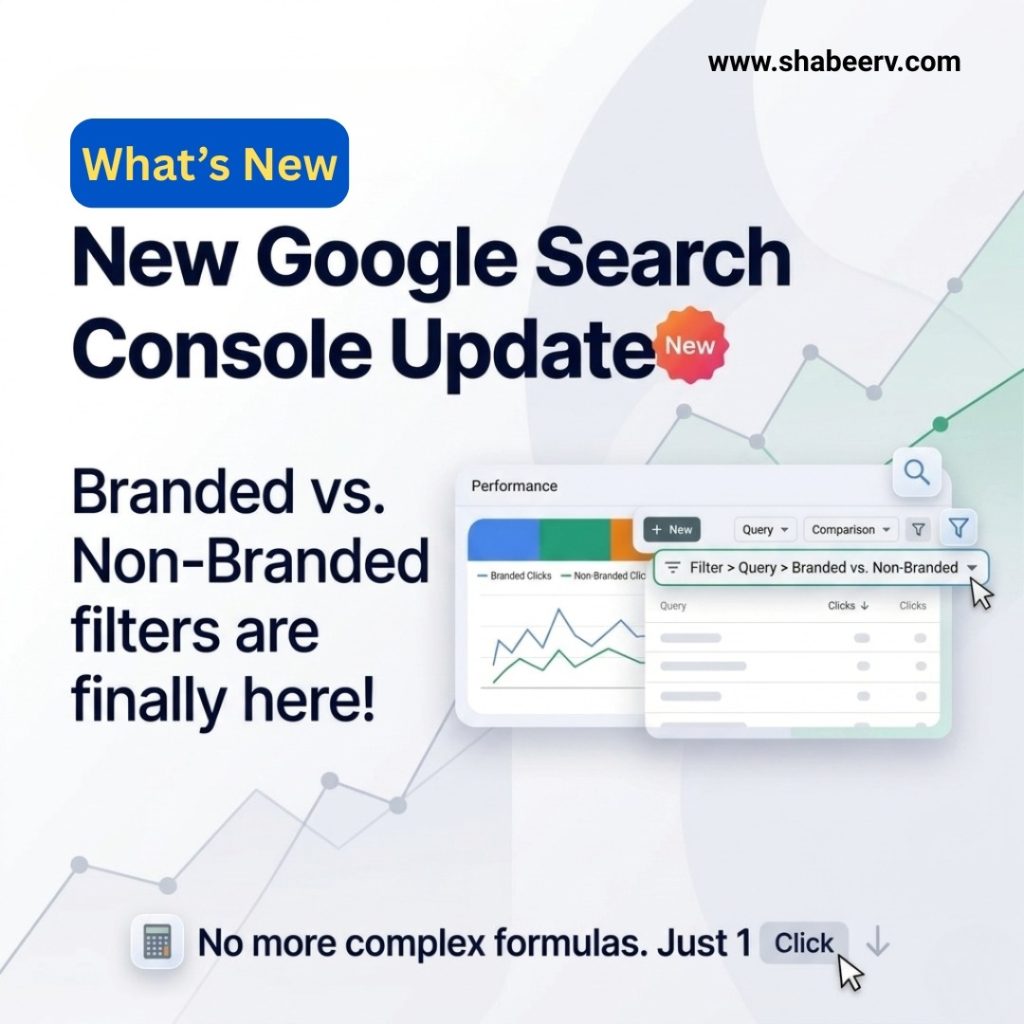
New Google Search Console Update: Branded vs. Non-Branded Filters Are Finally Here

Search engine optimization professionals and website owners have long relied on Google Search Console to analyze search performance. However, one of the most requested features has finally arrived — the ability to filter Branded vs. Non-Branded queries directly within the platform.

This new update simplifies SEO reporting and gives marketers deeper insights into how users discover their websites.

In this article, we’ll explore what the update means, how it works, and why it matters for your SEO strategy.


What is the New Google Search Console Update?

The latest update to Google Search Console introduces a built-in Branded vs. Non-Branded query filter inside the Performance report.

Previously, SEO professionals had to rely on complex spreadsheets, regex filters, or third-party tools to separate branded traffic from non-branded traffic. Now, Google has made this process easier with a simple built-in filter.

This means users can analyze search queries based on whether they include their brand name or not — all with just a few clicks.


Understanding Branded vs. Non-Branded Keywords

Branded Keywords

Branded keywords include the name of your brand or business in the search query.

Examples:

  • “Nike running shoes”

  • “Amazon customer support”

  • “ShabeerV SEO services”

These searches usually come from users who already know about your brand.

Non-Branded Keywords

Non-branded keywords are generic search terms that do not include your brand name.

Examples:

  • “best running shoes”

  • “SEO services near me”

  • “digital marketing tips”

These keywords are extremely important because they help you reach new audiences and grow organic traffic.


Why This Update is Important for SEO

The new feature in Google Search Console helps marketers make smarter decisions by clearly separating traffic sources.

1. Better SEO Performance Analysis

You can now easily understand how much traffic comes from brand awareness vs. discovery searches.

2. Improved Keyword Strategy

Marketers can identify which non-branded keywords are driving new users and optimize content around them.

3. Easier Reporting

SEO reporting becomes much simpler because the data can be filtered directly in Search Console instead of exporting and analyzing manually.

4. Measure Brand Growth

Tracking branded searches helps businesses understand how their brand visibility is increasing over time.


How to Use the Branded vs. Non-Branded Filter

Using this new feature in Google Search Console is simple:

  1. Open Google Search Console

  2. Go to Performance Report

  3. Click + New Filter

  4. Select Query Filter

  5. Choose Branded vs. Non-Branded

With this filter applied, you can quickly analyze clicks, impressions, CTR, and ranking positions based on brand search behavior.


What This Means for Digital Marketers

This update is particularly useful for:

  • SEO professionals

  • Digital marketing agencies

  • Content marketers

  • E-commerce businesses

By distinguishing branded from non-branded traffic, businesses can better measure the success of their content marketing and SEO campaigns.


Final Thoughts

The new Branded vs. Non-Branded filter in Google Search Console is a small but powerful update that makes SEO analysis significantly easier.

Instead of relying on complicated formulas or external tools, marketers can now analyze search intent and brand performance directly inside Search Console.

For businesses focused on organic growth, this feature provides clearer insights, better reporting, and smarter SEO strategies.

How to give access to a Meta business portfolio (Meta Business Manager Before)

In 2026, Meta has fully transitioned Business Manager into what is now called the Meta Business Portfolio. The process is similar to the old way but the interface is integrated directly into the Meta Business Suite.

Since you are the one managing the account, your client needs to follow these steps to give you access.


How to Give Access (Step-by-Step)

Step 1: Open Business Settings

The client needs to go to business.facebook.com/settings.

  • If they land on the general Business Suite, they should click the Settings (gear icon) at the bottom left, then click Business Settings (or “More Business Settings”).

Step 2: Add You as a Person

  1. Under the Users tab on the left sidebar, click People.

  2. Click the blue Invite People button.

  3. Enter your email address (the one you use for your professional Facebook account).

  4. Select Access Level:

    • Partial Access: Best for basic posting and ads.

    • Full Control: Necessary if you need to manage the Blue Tick (Meta Verified), billing, or adding other team members. I recommend Full Control for you to handle the Saudi account effectively.

Step 3: Assign Assets (The Most Important Part)

After clicking “Next,” a window will pop up asking which “Assets” you should manage. The client must select the following for you:

  1. Pages: Select the Facebook Page and toggle on Full Control (or all individual toggles).

  2. Ad Accounts: Select the specific Ad Account and toggle on Manage Ad Account.

  3. Instagram Accounts: Select the Instagram profile and toggle on all permissions.

  4. Pixels/Datasets: Essential for your “Leads/WhatsApp” campaigns to track results.

Step 4: Accept the Invite

  • You will receive an email from Meta. Open it and click Get Started.

  • Pro Tip: If you don’t see the email, tell the client to click on your name in the “People” tab and click Resend—they can then copy the “Invite Link” and send it to you directly via WhatsApp.


⚠️ Common Issues to Watch For

  • Two-Factor Authentication (2FA): Meta now requires 2FA to be turned on for everyone in a Business Portfolio. If you haven’t enabled it on your personal account, the invite might fail.

  • Pending Status: You won’t see the assets until you accept the email invite.

  • Business Verification: Since this is a Saudi client, Meta might ask them to “Verify the Business” (uploading their CR/Commercial Registration) before allowing you to run high-budget Lead Ads.


💡 How to “Request” Access Instead

If your client finds the above too confusing, you can request access from your end if you have your own Business Portfolio:

  1. Go to your Business Settings > Partners.

  2. Click Add > Ask a partner to share their assets.

  3. Enter your client’s Business ID (found in their “Business Info” tab).

  4. They will then get a notification to approve your request.

How to add a person (Team Member/Freelancer) to meta business manager

This is for inviting individuals, usually team members or freelancers, using their email address associated with their Facebook account.

Step-by-Step Guide:

  1. Log in to Meta Business Suite and go to Settings.
  2. Navigate to Users and then click on People.
  3. Click the + Invite People or + Add button.
  4. Enter the Email Address of the person you want to invite (the email must be the one they use for their Facebook login).
  5. Choose the Access Level for the Business Portfolio:
    • Partial Access (Basic/Employee): This is the recommended default. The person can only work on the specific assets you assign them (e.g., managing the Facebook Page).
    • Full Control (Admin): This grants them complete control over the entire Business Portfolio, including adding/removing people, managing all assets, and even deleting the portfolio. Reserve this for trusted owners/senior managers.
  6. Click Next.
  7. Assign Assets and Roles: Now, you must select the specific assets (like your Facebook Page, Ad Account, or Instagram account) you want this person to manage.
  8. For each asset selected, choose the specific role (e.g., Page access with tasks like Content, Messages, or Full control on the Page; or Advertiser on the Ad Account).
  9. Click Send Invitation.
  10. The new user must accept the invitation via the email Meta sends them. Their status will show as Pending until they accept

Performance Marketing: Definition, Metrics & Optimization Guide

In today’s digital-first world, brands no longer want to spend blindly on advertising. They want measurable results. That’s exactly where Performance Marketing comes in — a results-driven approach where advertisers pay only when a specific action is completed, such as a click, lead, sale, or app install.

Unlike traditional brand marketing, performance marketing focuses on data, ROI, and accountability, making it one of the fastest-growing areas of digital marketing.

 What is Performance Marketing?

Performance marketing is a pay-for-results digital marketing strategy. Instead of paying for visibility alone, advertisers pay only when users take measurable actions.
Common actions include:
  • Clicks
  • Leads
  • Sales
  • App Installs
Performance marketing is used across platforms like Google Ads, Meta Ads, Affiliate Networks, and Native Ads.

✅ Key advantage: Every rupee spent can be tracked, measured, and optimized for better returns.

Key Metrics in Performance Marketing

To measure effectiveness, marketers rely on a set of performance metrics:
  • Impressions & Reach → Visibility of your ads
  • CPC (Cost Per Click) → Spend per click
  • CPM (Cost per Mille) → Cost per 1,000 impressions
  • CPV (Cost Per View) → Spend per video view
  • CTR (Click-Through Rate) → % of people who clicked
  • CR (Conversion Rate) → % of people who took the desired action
  • CPA (Cost Per Acquisition) → Cost to acquire one customer
  • CAC (Customer Acquisition Cost) → Total spend per customer
  • CPI (Cost Per Install) → Spend per app install
  • ROAS (Return on Ad Spend) → Revenue per ad spend
  • ROI (Return on Investment) → Profitability after all costs
  • AOV (Average Order Value) → Average value per purchase
  • LTV (Lifetime Value) → Revenue per customer over their lifecycle

These metrics help marketers track performance, allocate budgets smartly, and optimize campaigns for profitability.

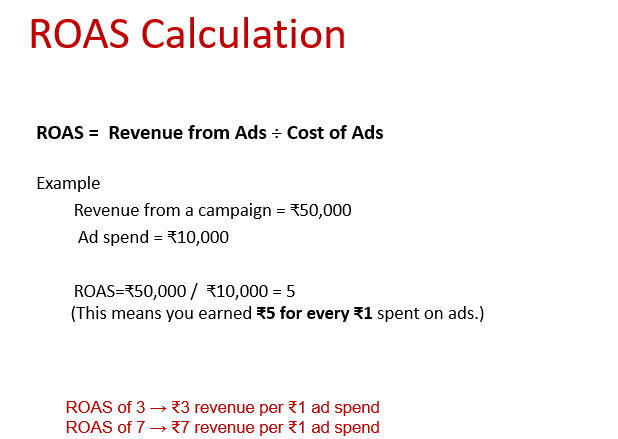
ROAS (Return on Ad Spend) 
ROAS shows how efficiently ad spend is turning into revenue.
Formula:
👉 This means for every ₹1 spent, you earn ₹5.
ROAS < 1 → You’re losing money
ROAS = 1 → Break-even

ROAS > 1 → Profitable


How to improve ROAS:

Improve conversion rate (better landing pages, optimized funnel)
Use precise audience targeting
Reduce CPC through ad testing

Retarget potential customers

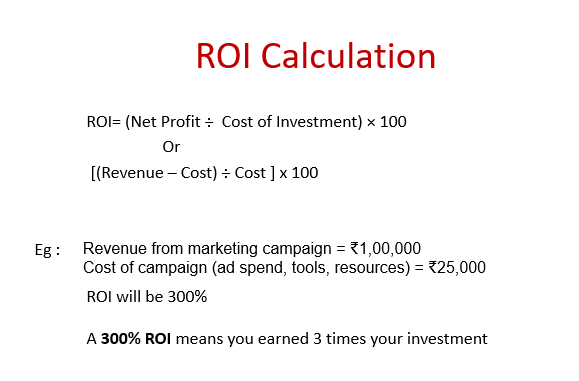
ROI (Return on Investment)

While ROAS focuses only on ad spend, ROI gives the bigger picture by including all marketing costs.
Formula:

👉 A 300% ROI means you earned 3x your total investment.

ROI vs ROAS: The Key Difference


Goals of Performance Marketing
The ultimate aim of performance marketing is to generate measurable results:
  • Drive website traffic
  • Generate qualified leads
  • Boost online sales
  • Retarget potential customers
  • Increase app downloads
How to Optimize Performance Marketing

Optimization is what makes performance marketing powerful. Here’s how marketers fine-tune their campaigns:

1. Audience Optimization
  • Use lookalike audiences
  • Refine targeting by behavior & interests
  • Retarget website visitors & cart abandoners
2. Landing Page Optimization
  • Ensure fast loading speed
  • Design mobile-first layouts
  • Add clear and prominent CTAs
  • Run A/B tests on different versions
3. Budget & Bidding Strategy
  • Start with auto-bidding to learn
  • Set CPA or ROAS targets
  • Allocate more budget to high-performing campaigns
4. Funnel & Tracking Optimization
  • Track micro-conversions (add-to-cart, sign-ups, video views)
  • Use remarketing & email nurturing to recover drop-offs
  • Install tracking pixels for accuracy
  • Monitor with GA4, UTM tags, and CRM tools
Performance marketing isn’t about spending more — it’s about spending smarter. By focusing on ROI and ROAS, brands can measure every rupee, optimize campaigns, and scale only what works.
With the right mix of targeting, creatives, landing pages, and bidding strategies, businesses can maximize their growth, profitability, and long-term customer value.
How to Add or Remove Admins in Shopify

Steps to Add or Remove Admins from a Shopify Store

Managing access to your Shopify store is essential for maintaining security and productivity, especially when working with a team. Whether you’re bringing in a new team member, hiring a developer, or removing someone who no longer needs access, it’s important to understand how to properly manage admin and staff permissions.

In this updated 2025 guide, we’ll walk you through the step-by-step process to add or remove admins and staff accounts in Shopify.


What Is an Admin in Shopify?

An admin is a staff member with access to manage most or all features in your Shopify store. The store owner has full control, including the ability to manage users, update billing, and transfer ownership.

Shopify allows store owners to create staff accounts with custom permissions, giving different levels of access based on each team member’s responsibilities.


How to Add an Admin or Staff Account in Shopify (2025)


Step 1: Log in to Your Shopify Admin

Go to shopify.com, log in, and access your store’s admin dashboard.

Step 2: Navigate to Settings > Users and Permissions

In the bottom-left corner of your dashboard, click Settings, then select Users and Permissions.

Step 3: Click “Add Staff”

On the Users and Permissions page, click the Add staff button at the top-right.

Step 4: Enter Staff Details and Permissions

Add the staff member’s name and email address.
Select the appropriate permissions. You can grant full admin access or limit access to specific areas such as orders, products, or marketing tools.

Step 5: Send the Invitation

Click Send invite. The staff member will receive an email to accept the invitation and set up their login credentials.


How to Remove an Admin or Staff Member in Shopify (2025)

Step 1: Go to Settings > Users and Permissions

From your admin panel, return to Settings and click on Users and Permissions.

Step 2: Select the Staff Member to Remove

Click on the name of the staff member or admin you wish to remove.

Step 3: Click “Remove Staff”

Scroll down and click Remove staff, then confirm. The user will immediately lose access to your store.

Important: Only the store owner can remove admins or transfer ownership. You cannot remove yourself unless ownership is transferred first.


Shopify Staff Account Limits by Plan (2025)

Different Shopify plans allow different numbers of staff accounts:

  • Basic Shopify – 2 staff accounts

  • Shopify Plan – 5 staff accounts

  • Advanced Shopify – 15 staff accounts

  • Shopify Plus – Unlimited staff accounts

If you need additional users, you may need to upgrade your subscription plan.


Using Collaborator Accounts for Partners and Agencies

If you work with external developers or marketers, Shopify allows them to request collaborator access without using one of your staff account slots.
You can approve or deny these requests from your Users and Permissions section.

How to Sell on Amazon India – Steps & Documents required

Documents Required:

To complete the Amazon India seller registration, you will generally need the following documents and information:

  • Contact Information:
    • Email address.
    • Active mobile phone number (for verification via OTP).
  • Identity Proof:
    • PAN (Permanent Account Number) card (both individual and business, if applicable).
    • Government-issued ID (such as Passport, Driver’s License, Voter ID).
  • Address Proof:
    • Official document with your business address (e.g., bank statement, electricity bill, telephone bill, credit card statement – must be dated within the last 180 days).
  • GST Registration Information (if applicable):
    • GSTIN (Goods and Services Tax Identification Number).
    • GSTIN certificate (REG-06 with Annexure A and Annexure B).
  • Bank Account Information:
    • Bank account holder’s name.
    • Bank account number.
    • IFSC (Indian Financial System Code).
    • Account type (Savings or Current).
  • Business License or Registration Details (if applicable):
    • If you are registered as a business entity (LLP, Private Limited Company, etc.), you may need to provide your company registration number and certificate of incorporation.

Once you have all these documents ready, you can start registering as a seller on Amazon.
Here are the steps

  • Register as a Seller:

    • Go to the Amazon Seller Central website for India: https://sell.amazon.in/
    • Click on “Start Selling”.
    • You can either sign in with your existing Amazon customer account or create a new one.
    • Provide the required information, which typically includes:
      • Your business name or legal name.
      • Your business address and phone number.
  • Provide GST Details:

    • Enter your Goods and Services Tax (GST) number. This is mandatory for most product categories in India.
    • If you sell GST-exempt products (like certain books), you might be able to indicate that during registration.
    • You may need to upload a copy of your GSTIN certificate (REG-06 with Annexure A and Annexure B). The accepted formats are PDF, JPG, or DOC (under 10MB). Verification can take up to 72 hours.
  • Verify GST Number:

    • After entering your GST number, you’ll likely need to verify it by uploading the GSTIN certificate.
  • Enter Your Store Name:

    • Choose a unique name for your Amazon.in store. This is how customers will see your business on Amazon. You can use your existing business name or create a new one. Amazon may also provide auto-generated suggestions.
  • Add Your Pickup Address Details:

    • Specify the address from where your products will be picked up for delivery. This can be the address registered with your GST or a different address within the same state.
  • Choose a Shipping Method:

    • Amazon offers different shipping options:
      • Easy Ship: You store and pack orders, and Amazon picks up and delivers them. You’ll be charged additional fees for this service.
      • Self Ship: You handle the storage, packing, and shipping yourself or use a third-party service.
      • Fulfillment by Amazon (FBA): You send your products to Amazon’s fulfillment centers, and they handle storage, packing, shipping, and customer service. This often makes your listings eligible for the Prime badge.
  • Add Bank Account Details:

    • Provide the details of an active bank account where Amazon will transfer your sales proceeds. You’ll need the bank account holder’s name, account number, IFSC code, and account type.
  • Select Default Tax Rate (Product Tax Code – PTC):

    • Choose the appropriate GST rate applicable to your product categories as notified by the government. This will be used for calculating taxes on your listings if you don’t specify a tax code for individual products.
  • List Your Products:

    • Once your account is set up, you can start listing your products. You can either:
      • Match an existing listing: If someone else is already selling the same product on Amazon, you can find the listing using the product’s ASIN (Amazon Standard Identification Number), UPC (Universal Product Code), EAN (European Article Number), or ISBN (International Standard Book Number) and add your offer (price, quantity, shipping options).
      • Create a new listing: If your product is new to Amazon, you’ll need to create a detailed listing with:
        • Title: A concise and informative title (up to 200 characters, with the first letter of each word capitalized).
        • Images: High-quality product images (at least 500 x 500 pixels, ideally 1000 x 1000 for better quality). Follow Amazon’s image guidelines. You can upload multiple images.
        • Variations (if applicable): If your product comes in different colors, sizes, etc., you can create variations within a single listing.
        • Bullet Points: Short, descriptive sentences highlighting the key features and benefits of your product.
        • Description: A more detailed description of your product, using relevant keywords to improve searchability.
        • Price: Your selling price for the product.
        • SKU (Stock Keeping Unit): A unique identifier you assign to your product to manage your inventory. If you don’t provide one, Amazon will generate one for you.
        • Product Identifiers (if applicable): GTINs like UPC, EAN, or ISBN. If your product doesn’t have these, you might need to apply for a GTIN exemption.
        • Maximum Retail Price (MRP): This is a mandatory field for most categories (excluding books).
  • Launch Your Store:

    • After listing at least one product, you can launch your store and start selling.

      If you have any queries or support required, kindly contact : 9656290162

Meta Business Verification for Whatsapp API

Meta Business Verification for Whatsapp API


Business Manager Verification Process

1. Fill up basic business details in “Business Info”

    Steps:-Go Meta Businesss Sute  → Setting → Business Manager Business Info  → In the My info section, Click Edit  → Click Save


2. Access Business Manager Security Center

To start the verification process go to Security Center and click Start Verification in the Business verification section

  • Click on Get Started
  • Enter your business information, then click Next.
  • If your business is listed, then verify details and enter confirmation code.
  • If your business isn’t listed, choose None of these matches or the correct option from the list.
  • Verify your business information and submit the Business documents.
  • Post submitting the Business documents, specify how you would want to receive a verification code on your business phone number- by text, phone, or email.
  • Enter the code and Click Submit.


After you upload the documents, Meta will review them as quickly as they can. This may take several days. You can check the current status of your verification by going to your Security Center.

When your business is verified you will be notified and you will also see the verified status in your account

Accepted document types:-

The primary document types that are acceptable for business verification are as follows. Make sure that these documents are not expired and are issued by the relevant authorities.

  • Certificate/Articles of incorporation
  • Business registration or licence document
    1. Government-issued business tax document: This could include a tax certificate. Self-filed tax documents are not accepted.
  • Business bank statement
  1. Utility bill: A utility bill is only accepted for Business address and Phone number. The legal business name must be on the utility bill. A utility bill is not an acceptable document for legal business name verification
steps to give linkedin business page access to others

Steps to give LinkedIn business page access to others

How to give LinkedIn business page access to others. Here are the steps:

  • Log in to your LinkedIn account and navigate to your company page.
  • Click on the “Admin” tab located in the top right corner of your company page.
  • Select “Manage Team Members” from the dropdown menu.
  • Click on the “Add Team Member” button.
  • Enter the email address of the person you want to give access to.
  • Choose the appropriate role for the team member.
    Options may include:
    Administrator: Can manage all aspects of the company page.
    Content Manager: Can create and publish content.
    Social Media Manager: Can manage social media integrations.
    Page Insights Viewer: Can view page analytics.
    Custom Role: You can create a custom role with specific permissions.
  • Click “Invite” to send an invitation to the person.
  • The invited person will need to accept the invitation before they have access to your company page.

How to Add a Manager to Your YouTube Channel?

Using a computer:

  1. Go to YouTube Studio [YouTube Studio].
  2. Click on “Settings” in the left sidebar menu.
  3. Under “Settings,” click on “Channel” (for personal accounts) or “Permissions” (for brand accounts).
  4. Click on “Add or remove managers” (for personal accounts) or “Manage permissions” (for brand accounts).
  5. Enter the email address of the person you want to make a manager.
  6. Select “Manager” from the dropdown menu that defines their access level.
  • Manager permissions: Managers can upload videos, manage playlists, edit basic channel information, respond to comments, and more.
  1. Click “Invite.”

Using the YouTube Studio app:

  1. Open the YouTube Studio app and tap on your profile picture.
  2. Select “Settings” from the menu.
  3. Tap on “Permissions.”
  4. Tap on “Invite” and enter the email address of the person you want to add.
  5. Choose “Manager” from the access level options.
  6. Tap “Send invitation.”

The invitee will receive an email with instructions to accept the invitation and become a manager of your channel. The invitation expires after 30 days if not accepted.